How to Download YouTube Videos on iPhone (Safari, No App)
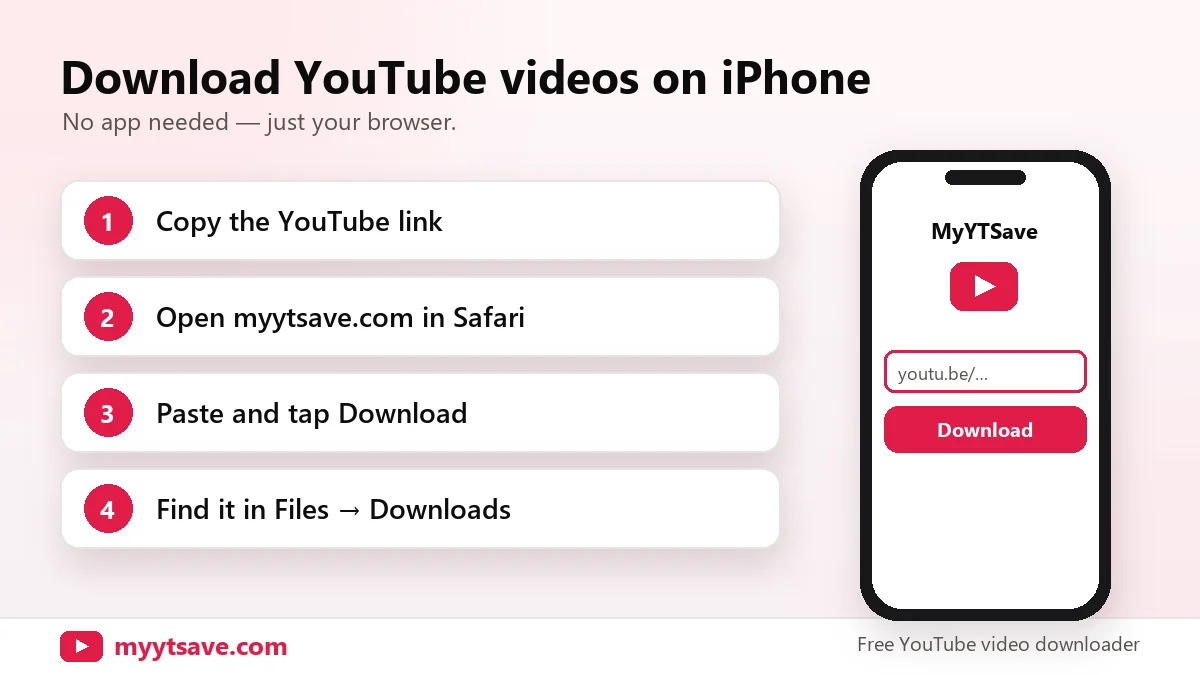
Quick answer: on iPhone, copy the YouTube link, open MyYTSave in Safari, paste the link, choose MP4 and tap Download. The video saves to Files → Downloads; from there tap Share → Save Video to add it to Photos.
Step-by-step on iPhone and iPad
- In the YouTube app, tap Share → Copy link.
- Open Safari and go to myytsave.com.
- Tap the box, tap Paste, then Download.
- Choose a quality (720p is a good balance) and tap Download.
- When Safari asks, tap Download again. A blue arrow appears in the address bar.
Where to find the video
Tap the Safari downloads arrow, or open the Files app → Browse → Downloads.
Save the video to Photos
- Open the video in Files.
- Tap the Share button.
- Choose Save Video.
If the video opens instead of downloading
Older iOS versions may play the file in a new tab. Tap the Share button in that tab and choose Save to Files, or press and hold the video and choose Download Linked File.
Only save what you’re allowed to
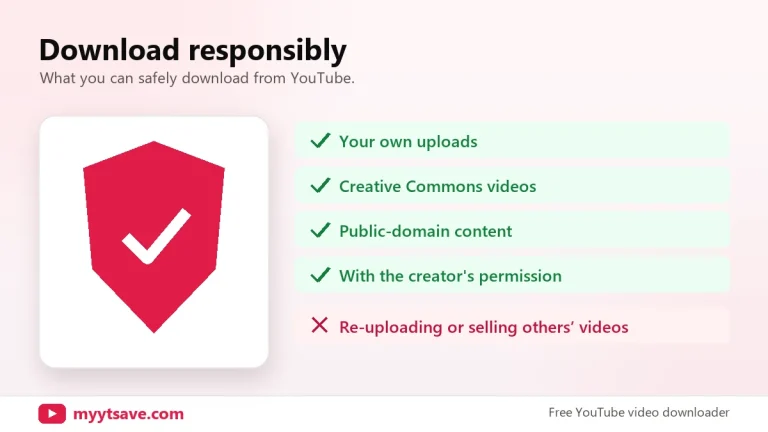
Download your own videos, Creative Commons content or videos you have permission to keep. For offline viewing of other creators’ videos, YouTube Premium is the official option.